
When an AI Agent Fills Out Your Quote Form: Making Service Business Websites Work With Chrome Auto Browse

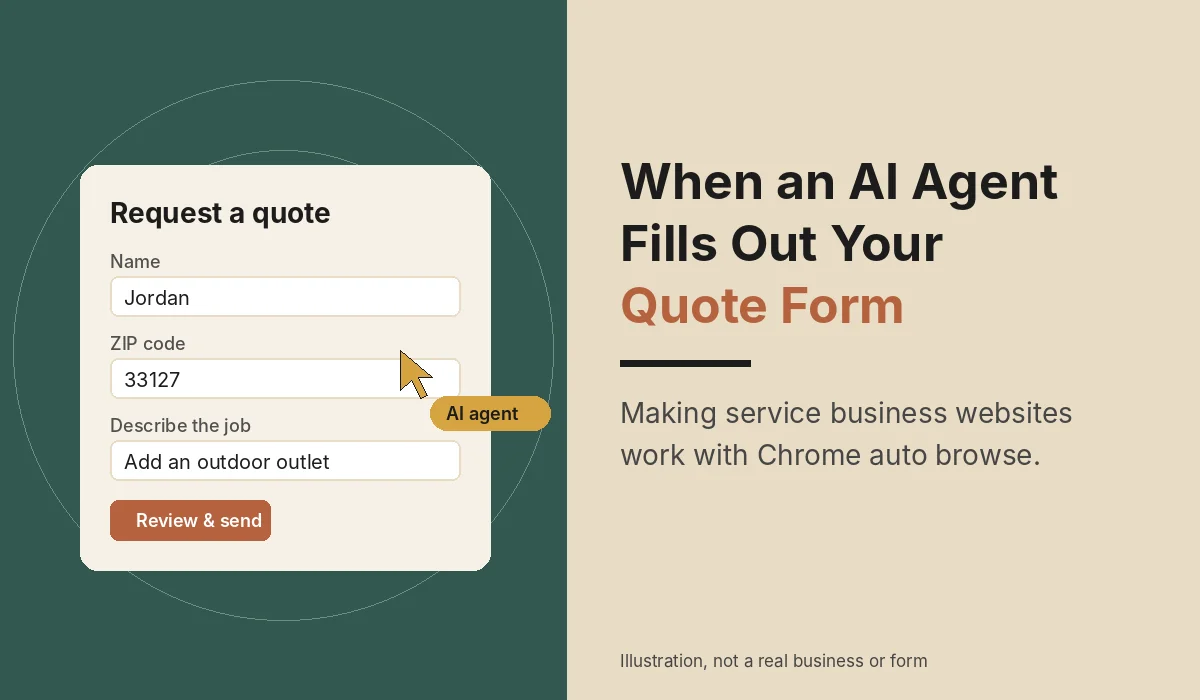
When Google launched auto browse in Chrome in January 2026, it published a short list of chores early testers had handed to the new agent. One item on that list should get the attention of every plumber, electrician and contractor with a website: "getting quotes for plumbers and electricians" (Google, January 28, 2026; 9to5Google, January 28, 2026; TechCrunch, January 28, 2026).
That means some of the people who request a quote from you won't be typing into your form themselves. They'll tell Chrome something like "get me quotes from three electricians near me to add an outdoor outlet," and an AI agent will open your site, find the form and fill it in. If your form is confusing for a person, it is usually worse for an agent. This article covers what auto browse actually does, who has it, where quote forms tend to fail, and what Chrome's new WebMCP attributes let you do about it.
What Chrome auto browse is, and who can use it
Auto browse is an agent inside Chrome, powered by Gemini, that clicks, scrolls and types on websites to finish a multi-step task for the user. Google says it is "currently rolling out in preview in the U.S. for Google AI Pro and Google AI Ultra subscribers," with Gemini in Chrome available on Windows, macOS and Chromebook Plus (Google). 9to5Google adds that there is "a daily limit to how many agentic actions you can take" (9to5Google). In August 2026, Google brought it to Android, again for "AI Pro and AI Ultra subscribers on Android in the U.S." (Google, August 18, 2026).
So this is not every customer yet. It's paying Google subscribers in the U.S., on desktop and Android. But that group tends to include busy homeowners and property managers, exactly the people who want three quotes without making three phone calls.
Google says testers used it for "scheduling appointments, filling out tedious online forms, collecting their tax documents, getting quotes for plumbers and electricians, checking if their bills are paid" and more, and shows it filling in a form "with information from a PDF" (Google). Scheduling and quote requests are the two that land on a service business's website.
What the agent does on your site (and where it stops)
The agent works through your page the way a person would: it reads the page, picks the fields and types in the details the user gave it. It does not take every step on its own, though:
- It hands back sensitive steps. Google says auto browse "is designed to pause and explicitly ask for your confirmation or prompt you to complete some tasks like making a purchase or posting on social media" (Google). TechCrunch reports that the agent "will ask for your intervention when performing data-sensitive tasks, such as logging into a website or making a final purchase" (TechCrunch). On Android, Google says auto browse "is designed to ask for confirmation before completing some sensitive tasks" (Google).
- The user can take over at any time. 9to5Google notes users can "Take over task" mid-way, and that Gemini makes you press the buy button yourself when shopping (9to5Google).
- It can sign in only with permission. Google says that "if you give auto browse permission, it can use Google Password Manager to handle tasks even if a sign-in is required" (Google).
For a service business, the practical meaning is simple. If your quote request makes the customer create a new account, verify a login or pay up front, expect the agent to pause and hand that step back to the customer. Some customers will finish it. Others will move on to the next company on the list, whose form just took a name, a ZIP code and a job description.
There is a measurement side, too. PPC Land points out that agent sessions can look like ordinary browser traffic in analytics (PPC Land). You may not be able to tell which quote requests an agent typed. That's another reason to track the submission itself and what happened to the lead afterward, which we cover in our guide to tracking AI search traffic and leads in GA4.
Where quote forms trip up agents
Google's developer guidance on forms for AI agents is written for the new WebMCP feature (more on that below), but it is blunt about which forms are hard to use from an agent's side. It calls out three poor fits: forms whose options change based on other inputs, custom widgets that don't pass their values as normal form fields, and multi-step wizards (Chrome for Developers: Agentic Forms).
Those three describe a lot of contractor websites. Common examples:
- The "estimate wizard." Five screens of tiles (pick your service, pick your home type, pick your timeline) before the contact fields appear. Each step is another chance for the agent, or the person, to give up.
- Fancy pickers. A date picker or a "drag the slider to your budget" control built from custom code instead of a standard input. A person can see it; an agent has to guess.
- Fields with no real labels. Placeholder text that disappears when you start typing, or a label that's only an icon. Chrome's form tools fall back to the field's
<label>text to describe it, so a missing label leaves the agent with less to go on (Chrome for Developers: Declarative API). - Forms that hide behind a chat bubble or a popup. If the only way to request a quote is a third-party chat widget that opens after a delay, an agent may never find it.
- Unclear errors. "Invalid input" with no hint of which field is wrong. Google's WebMCP guidance tells developers to add "descriptive errors" so the model can "self-correct and retry with new, valid parameters" (Chrome for Developers: WebMCP best practices). The same courtesy helps every human customer.
None of these require AI to fix. A short, plain form on its own page, with real labels and clear error messages, works for customers on a phone in a basement, customers using a screen reader and agents alike.
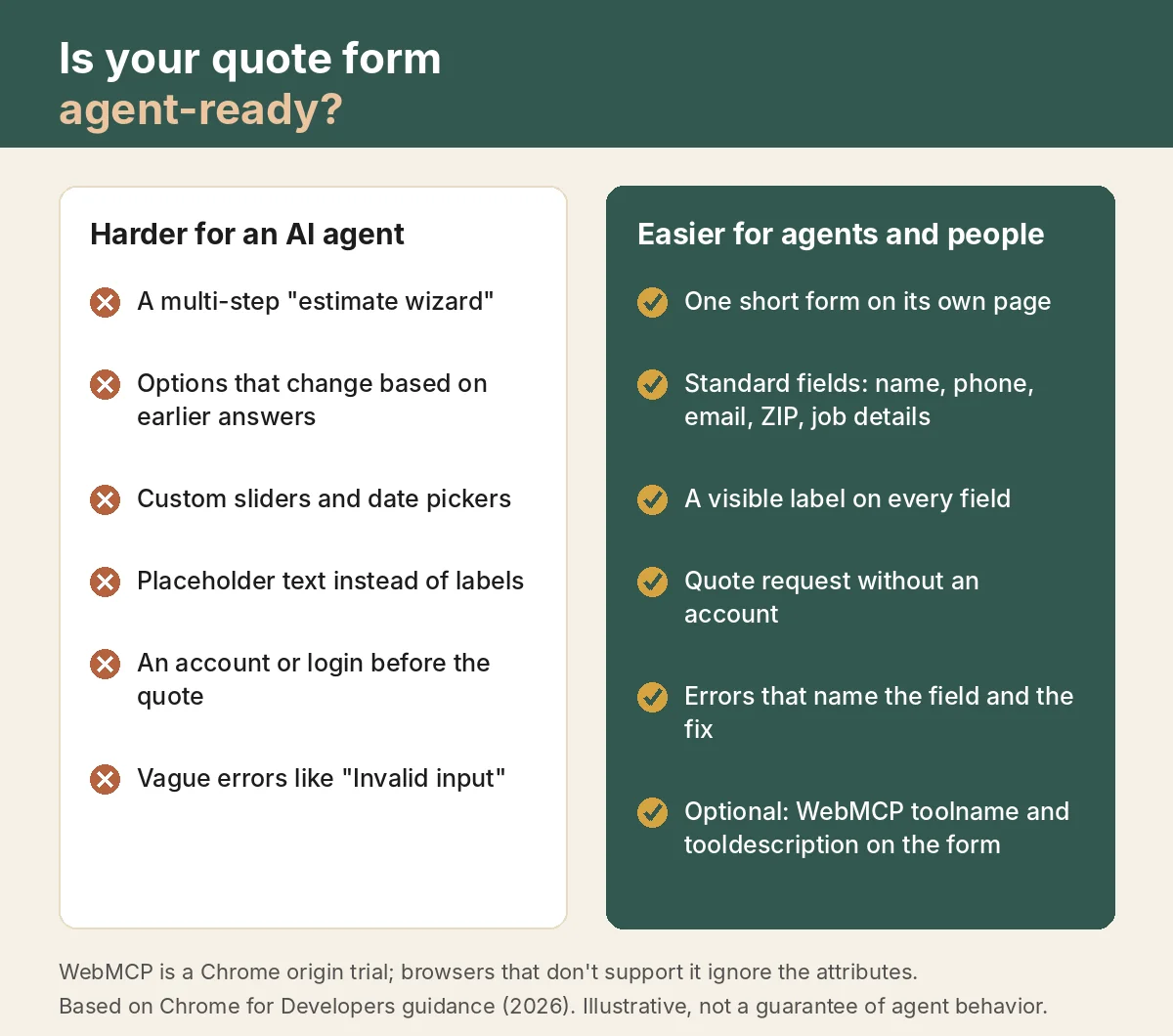
Illustrative checklist by Tamitechs based on Chrome for Developers guidance on agentic forms and WebMCP (2026). Not a guarantee of how any agent will behave on a given site.
What a quote form that works for agents looks like
Think about what a customer actually tells the agent: what the job is, where they are, when they'd like it done and how to reach them. Your form should ask for those things in that language.
- Keep it to one page. Name, phone, email, ZIP code or address, a short "describe the job" box and a preferred time window. Ask for photos as optional, not required.
- Use standard fields. Plain text boxes, standard dropdowns and checkboxes. If you need a service type, a normal dropdown with clear options ("Water heater repair," "Drain cleaning") beats a grid of image tiles.
- Label every field in words. "ZIP code where the work is," not just a map-pin icon. The label is what both a screen reader and an AI agent use to understand the field.
- Tell the browser what each contact field is. The HTML
autocompleteattribute lets browsers fill in saved details (web.dev). Standard values includename("a person's full name"),email,tel,street-addressandpostal-code("in the United States, this is the ZIP code") (MDN). Using them also meets WCAG 2.2 Success Criterion 1.3.5, Identify Input Purpose (Level AA), which W3C says helps people with memory-related and motor disabilities by "reducing the need for manual input" (MDN; W3C). - Don't require an account to ask for a price. Save logins for the customer portal after the job is booked.
- Say what happens next. After the form is sent, show a confirmation page that says when you'll reply and how. The agent reports back to the customer; give it something clear to report.
- Make the form easy to find. Link to it from your main menu and every service page with the same wording ("Request a quote"), and give it its own URL, such as /quote/.
- Watch spam rules. Keep your spam protection, but test it. If a filter blocks the real customer whose agent filled the form, you've lost a lead you'll never know about.
If you also offer online booking, the same rules apply to your booking page. We covered a related change, booking links inside Google search, in our article on booking from Google's AI Mode. Wherever the customer starts, the final step still happens on a web page, and ideally it's one you control.
WebMCP: telling Chrome what your form does
Chrome is also testing a way for websites to describe their forms to AI agents directly. It's called WebMCP, and its Declarative API lets developers "transform standard HTML forms into WebMCP tools by adding annotations" (Chrome for Developers: Declarative API).
In practice, a developer adds two attributes to the form tag:
toolname, a short name based on the form's purpose (for example,request-plumbing-quote)tooldescription, a sentence describing what the form does (for example, "Request a quote for residential plumbing work in our service area")
The browser builds the rest from the form itself. Field names become the tool's parameters, required fields stay required, and dropdown options become the allowed values. An optional toolparamdescription attribute can explain a field further; without it, Chrome uses the field's label (Chrome for Developers: Declarative API). That's one more reason the labels matter.
Two details are important for a quote form:
- The customer still clicks Submit by default. When an agent uses a WebMCP form, "the browser brings the form into focus and populates its field. The form remains visible to the user," and without an extra attribute "the user must manually click Submit to complete the task" (Chrome for Developers: Declarative API).
- Auto-submit is for low-risk actions. A
toolautosubmitattribute lets the agent send the form without waiting. Google suggests it for searches, lookups and reversible actions like adding to a cart, and says to leave it off for financial actions, sensitive account settings and "High-Impact User Communication" (Chrome for Developers: Agentic Forms). A quote request sends the customer's contact details to a business, so we'd leave it off and let the customer review before sending.
Keep expectations in check. Google first offered WebMCP to an early preview program in February 2026 (Chrome for Developers, February 10, 2026), and its overview now calls it "a proposed web standard" with an origin trial "from Chrome 149" (Chrome for Developers: WebMCP). Google also says it is "under active discussion and subject to change in the future" (Chrome for Developers: Declarative API). Adding the attributes doesn't move you up in search results or make any AI tool recommend you. The low risk is the appeal: "Browsers that do not support WebMCP will ignore the tool* attributes, and the <form> will continue to function as a normal HTML form" (Chrome for Developers: Agentic Forms). If your site is custom-built and your form is already simple, it's a small, reversible change your developer can test. If your form comes from a page builder or a third-party widget, wait until that vendor supports it.
A 15-minute test you can run this week
You don't need an AI subscription to find most problems. Open your quote form on your phone and ask:
- Can I find the quote form from the home page in one tap?
- Does every field have a visible label that stays put while I type?
- Can I send it without making an account?
- If I leave out my phone number, does the error tell me exactly what's missing?
- After I send it, does the page tell me what happens next?
If someone on your team has a Google AI Pro or Ultra subscription in Chrome, try one more test: ask auto browse to request a quote from your own business for a common job, with made-up details clearly marked as a test. Watch where it hesitates. Then look at the form the way the agent did.
How we can help
Our website development team builds fast, simple service-business sites with quote and booking forms that are easy for customers, screen readers and AI agents to complete, and can add WebMCP attributes where they make sense. Our SEO and home services marketing work makes sure the people, and the agents acting for them, find the right page in the first place.
If you'd like us to review your quote form and the path to it, get in touch.
Sources
- Google: The new era of browsing: Putting Gemini to work in Chrome (January 28, 2026)
- 9to5Google: Chrome rolling out Gemini 3-powered 'auto browse' with Google AI Pro (January 28, 2026)
- TechCrunch: Chrome takes on AI browsers with tighter Gemini integration, agentic features for autonomous tasks (January 28, 2026)
- Google: Tap into the power of Gemini in Chrome on Android (August 18, 2026)
- PPC Land: Chrome auto browse lets AI agents book travel and fill forms alone (July 14, 2026)
- Chrome for Developers: WebMCP is available for early preview (February 10, 2026)
- Chrome for Developers: WebMCP overview (updated October 7, 2026)
- Chrome for Developers: WebMCP Declarative API (updated September 25, 2026)
- Chrome for Developers: Agentic Forms (updated October 20, 2026)
- Chrome for Developers: WebMCP best practices
- MDN: autocomplete HTML attribute
- web.dev: Autofill
- W3C: Understanding Success Criterion 1.3.5: Identify Input Purpose