How to Track AI Search Traffic and Leads in GA4
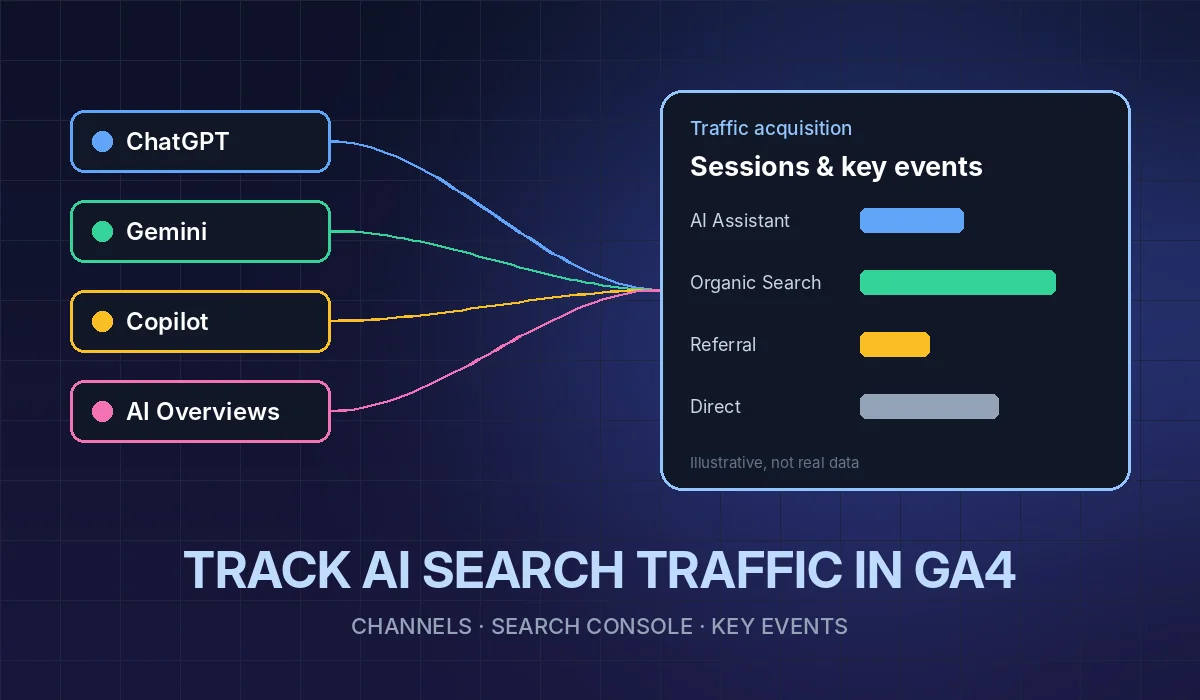
If you run a service business, you have probably heard some version of "people are finding companies through ChatGPT now." Maybe a customer even told you that is how they found you. The next question is the one that matters for your budget: how many visits and leads is AI search actually sending, and is it growing?
Google Analytics 4 can answer part of that question, and Search Console can answer another part. Neither one answers all of it. This guide shows where each kind of AI traffic lands in your reports, how to set up a view you can check in two minutes a month, and how to connect those visits to calls and form fills, which are the numbers you really care about.
Three kinds of "AI traffic," three different places in your reports
"AI search" covers different products that pass visitors to your site in different ways. Before you open GA4, separate them:
- AI assistants such as ChatGPT, Gemini and Copilot. When someone clicks a link in one of these answers, the visit arrives with information about where it came from.
- Google's AI features in Search, meaning AI Overviews and AI Mode. These are part of Google Search, and Google reports them as search traffic.
- Visits AI influenced but cannot be traced. Someone reads an AI answer, then types your name into Google, dials the number from the answer, or comes back days later. No report will label these as AI.
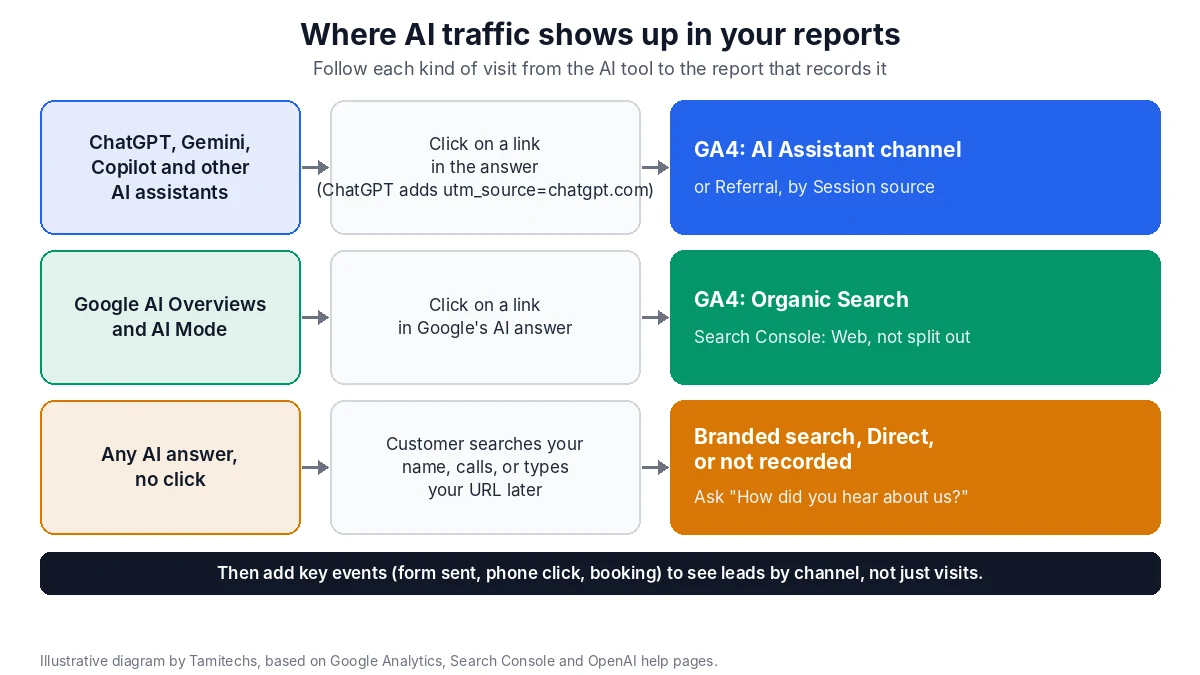
Illustrative diagram by Tamitechs, based on Google Analytics, Search Console and OpenAI help pages. What you see depends on your property's settings and on how each visitor arrives.
1. AI assistants: the AI Assistant channel
Google Analytics groups traffic into channels using a set of rules called the default channel group. Google's current default channel group definitions include a channel called AI Assistant, described as "the channel by which users arrive at your site from sources like ChatGPT, Gemini, Deepseek, Copilot, or Grok." Under the definition, the medium for these visits is set to "ai-assistant" when the referrer matches Google's list of AI assistants.
ChatGPT also labels its own links. OpenAI's publishers and developers FAQ says "ChatGPT automatically includes the UTM parameter utm_source=chatgpt.com in referral URLs," and that publishers who allow OAI-SearchBot can track that referral traffic with tools like Google Analytics.
How to see it:
- In GA4, open Reports → Acquisition → Traffic acquisition.
- Make sure the table's primary dimension is Session default channel group.
- Look for the AI Assistant row. Click it, or add Session source as a secondary dimension, to see which assistant sent each session.
If you do not see an AI Assistant row, either no tracked visits came from those tools in your date range, or your reports are not using that channel yet. In that case, check the Referral channel and the Session source dimension for sources such as chatgpt.com. That is also where you should look for AI tools that are not on Google's list.
Optional: build your own AI channel
If you want control over which tools count as AI, GA4 lets you build a custom channel group. Google's custom channel group help page explains the setup:
- Go to Admin → Data display → Channel groups. You need Editor access or higher on the property.
- Click Create new channel group, which starts as a copy of the default group.
- Add a channel (for example, "AI tools") with a condition on the source using matches regex, listing the AI tools you care about.
- Move your new channel above Referral. Google's page explains why: "Traffic is included in the first channel whose definition it matches given the current order of channels in the group."
A standard GA4 property can have two custom channel groups, with up to 50 channels in each, and Google says custom channel groups "can be applied to your reports retroactively." So you do not lose history by setting one up today.
Keep the list honest. New AI tools appear often, and a regex written today will miss tomorrow's. Review it every quarter.
2. Google AI Overviews and AI Mode: counted as search
This is the part most business owners miss. The same default channel group page says the AI Assistant channel "excludes Google's AI Overviews and AI Mode," and that Organic Search includes them. A visit from a link in an AI Overview lands in GA4 as Organic Search, mixed in with regular Google results.
Search Console follows the same approach. Google's AI features guide says sites appearing in AI features are "included in the overall search traffic in Search Console," in the Performance report under the Web search type. Google's Performance report help spells out the counting:
- "Clicking a link to an external page in the AI Overview counts as a click," and the same goes for AI Mode.
- "An AI Overview occupies a single position in search results," and all links inside it get that same position.
- In AI Mode, position "follows the same methodology as a Google Search results page."
The page does not describe a filter that separates AI Overview or AI Mode clicks from regular results. So for Google's AI features, you can't count AI visits on their own. You can watch the queries and pages where your clicks and impressions move, and treat Organic Search as one channel that now includes AI answers.
Google also suggests looking past clicks. The AI features guide recommends tracking "conversions and time spent on your site in other tools, such as Google Analytics." That leads to the most important step.
3. Turn visits into leads: key events
Sessions are not customers. For a plumber, mover or law firm, what counts is a phone call, a quote request or a booking. In GA4 these are called key events, and until you set them up, no channel report can tell you which source sends business.
Google's key events help page explains the two ways to set one up:
- Mark an existing event. In Admin → Data display → Events, find the event (for example, your form submission event) and click the star icon next to it.
- Create a new key event. Click Create event, name it, and turn on Mark as key event. You need Marketer access or higher.
A standard property can have up to 30 key events, and new key events can take up to 24 hours to show in standard reports.
For a service business, these are the actions worth tracking:
- Quote or contact form submitted. Fire the event when the thank-you message or page appears, not when someone opens the form.
- Click on a phone number. If customers usually call you, this matters most. Track clicks on your
tel:links as an event, through Google Tag Manager or your developer. - Booking completed, if you use online scheduling.
- Click to message, such as a WhatsApp or text link.
Once these exist, go back to Traffic acquisition and add the key event columns. Now each channel, including AI Assistant and Organic Search, shows leads as well as visits.
What GA4 will never show you
Be realistic about the third kind of AI traffic. A lot of AI influence happens with no click at all:
- Someone asks ChatGPT for "a reliable mover in Fort Lauderdale," sees your name and searches for it on Google. GA4 records Organic Search, probably on a brand query.
- They call the phone number shown in the answer. If no website visit happens, GA4 records nothing.
- They copy your URL into the browser, or come back from a bookmark days later. GA4 may record Direct.
So two simple habits fill the gap:
- Ask every new lead "How did you hear about us?" and give "ChatGPT or another AI tool" as an option on your form and in your call script. Log the answer in your CRM or a spreadsheet.
- Watch branded search in Search Console. If more people are searching for your company by name while AI Assistant visits stay small, AI answers may be part of the reason. Treat that as a sign worth investigating, not proof.
A 15-minute monthly AI traffic check
Put this on the calendar for the first Monday of each month:
- GA4 → Traffic acquisition, last 28 days compared with the previous period. Note sessions and key events for AI Assistant, Organic Search and Referral.
- Session source filtered to AI tools. Which assistants send visits, and which pages do they land on?
- Search Console → Performance → Web. Compare clicks and impressions for your main service pages and for branded queries.
- Your lead log. Count the "found you through AI" answers.
- Write down one decision. For example: "ChatGPT visits all land on the moving checklist post, so add a quote button there."
Over a few months, this gives you a trend you can trust far more than any single report.
What to do with the numbers
If AI tools already send visits that become leads, make sure the pages they land on convert: a clear phone number, a short quote form and proof such as reviews. If AI tools send almost nothing, that is useful to know too. Our diagnostic on why ChatGPT recommends your competitor walks through the usual causes, from blocked crawlers to thin service pages.
The work that earns AI mentions is mostly the work behind good local SEO: clear service pages, an accurate business profile, steady genuine reviews and a site AI crawlers can read. Our SEO service covers that, and our website development team can set up the key events and call tracking described here so your reports show leads, not just visits. No one can promise that an AI assistant will recommend you, but you can make sure you can see what happens when one does.
If you would like help setting up GA4 for AI traffic, or a second opinion on what your current reports show, contact us.
Sources
- Google Analytics Help: Default channel group
- Google Analytics Help: Custom channel groups
- Google Analytics Help: Mark events as key events
- OpenAI Help Center: Publishers and developers FAQ
- Google Search Central: AI features and your website
- Search Console Help: Performance report (AI Overviews and AI Mode)
Written by Ava Davis for Tamitechs.